What can I filter by in Posts?
🔎 Filtering in the Posts area
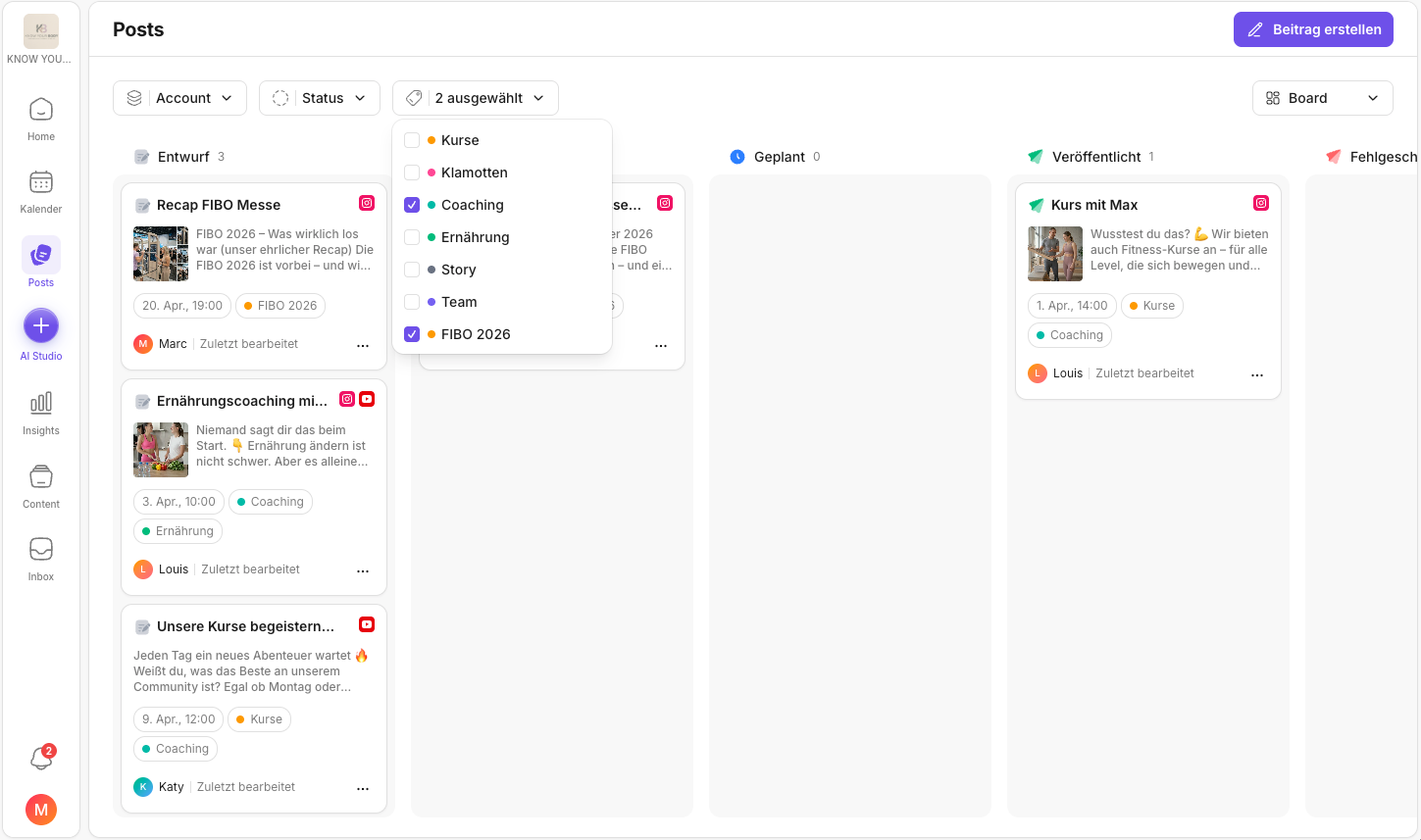
Filters help you pull exactly the posts you need right now out of a long list – turning Posts into a clear work list instead of an endless overview.
If you first want to get to know the Posts area as a whole, start with Introduction to the Posts area.
If you see a lot of posts in the Posts area, that is not a problem – it is the normal state: Posts is deliberately built so everything comes together there, from drafts to published content.
So you still never have to search, you use filters.
Filters work like a "spotlight": you fade out everything that is not important right now and focus only on the posts you need to edit or decide on now. That saves time and ensures you do not accidentally work on the wrong account or the wrong format.
You can filter by these criteria
If you plan more by date than by status/overview, the Calendar is the right complement.
Account
Use Account to see only posts from specific channels/accounts.
If accounts are missing or cannot be selected, it is usually due to the connection or permissions → Adding social media channels.
Status
Use Status to control your working mode, for example:
- finishing drafts
- working through approvals
- doing a final check of scheduled posts
If you want to read up on the review flow, see Approval & review in Posts.
If you want to understand statuses more in the Calendar context, see Understanding statuses & approvals in the Calendar.
Labels
Use labels to quickly group formats and campaigns, for example:
Format:WochendradarKampagne:LaunchPrio:Hoch
You will find more on naming, dos & don'ts, and series logic here:
Best practice: Combining filters
If you create platform posts or plan across platforms, KNOWYOURCHAT Posting is also helpful as a complement.
Most teams get there fastest by combining filters, for example:
- Account: Instagram + LinkedIn
- Status: Waiting for approval
- Labels: Format:Wochendradar
That way you see exactly the posts that are up next.
💡 Tip: If posts seem to have "disappeared", it is almost always due to a filter. Reset the filters once.
If content is still missing afterwards or buttons are not there, first check permissions/connection and then use Troubleshooting the KNOWYOURCHAT Calendar.
Need personal help? Email us at support@knowyourchat.de