Understanding Inbox Items
In the Inbox, you see every message in clear context. This matters because a single DM or comment often only makes sense once you know where it originated and what the original post was about.
If you read inbox items correctly, you reply faster, avoid misunderstandings, and can hand things over cleanly within your team.
If you're new to the Inbox, the Introduction to the KNOWYOURCHAT Inbox is a good starting point.
1) Post preview
In the detail view, the related post is shown as a preview at the top.
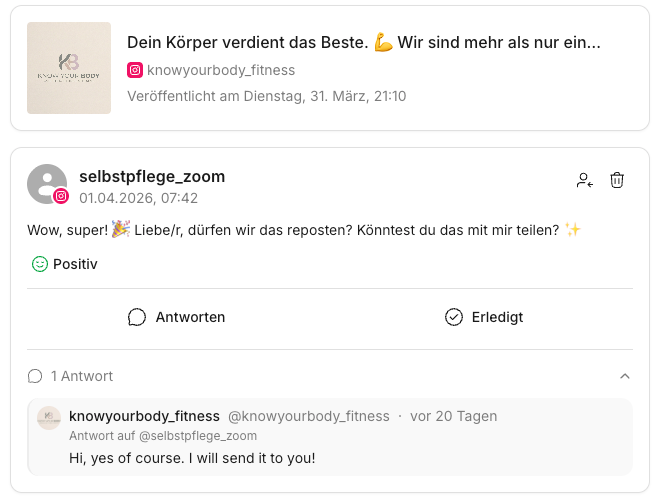
This lets you immediately assess:
- which post is meant
- what topic/offer the post contains
- whether the message is more like feedback, a follow-up question, or a specific request
2) Thread history (conversation)
An inbox item is usually a thread – i.e. a message history.
Why this matters:
- You can see whether a reply has already been sent.
- You can see whether someone is following up or opening a new topic.
- You can keep replies consistent.
3) Information in the thread: sender, time & platform
In the inbox list (on the left), each thread shows, among other things:
- sender/profile
- time (e.g. "X days ago")
- platform (e.g. Instagram/TikTok/YouTube …)
This information helps you prioritize:
- urgent questions first
- check older threads before they go "cold"
4) Status & "Done" (team follow-up)
In the Inbox, you can track threads cleanly through the workflow:
- work on open ones
- reply or assign
- then mark them as Done
This way, everyone on the team can immediately see what's still open – and what has already been completed.
5) Actions: reply, assign, labels
Depending on the thread, the following actions are available:
- Reply: respond directly from the Inbox
- Assign: hand over to a workspace member so it's clear who takes over
- Labels: structure threads (e.g. topic, urgency, context)
- Done: close when the conversation is resolved
✅ Best practice: Before you reply, always briefly scan the post preview + history. This prevents most wrong replies.
Common pitfalls
- "I don't understand the message." Open the post at the top first and read the thread history. The context often explains itself.
- "Why can't I reply?" This can be due to platform restrictions. See: Platform Limitations.
- "I don't know who should take over." Use assignments so it's clear who replies (and the thread doesn't get stuck). See: Assigning & Collaboration.
Related pages
Need personal help? Email us at support@knowyourchat.de