How do I manage members?
How do I manage members (Workspace)?
In this area, you manage who has access to your workspace and which role a person takes on in the workspace. This is important so that collaboration runs smoothly and no one has more permissions than necessary.
Good member management is less about "admin work" and more about team setup: Who creates content? Who approves? Who replies to comments? Who is allowed to connect accounts?
If you first want to see where "Members" fits in the overall picture of the settings, start here: Settings: overview.
What can you do in the "Members" area?
Typical tasks are:
If you're currently setting up your workspace from scratch (structure, roles, rules), this is also useful context: Setting up your workspace: basic setup & structure.
- Invite members
- Check roles and permissions
- Remove access
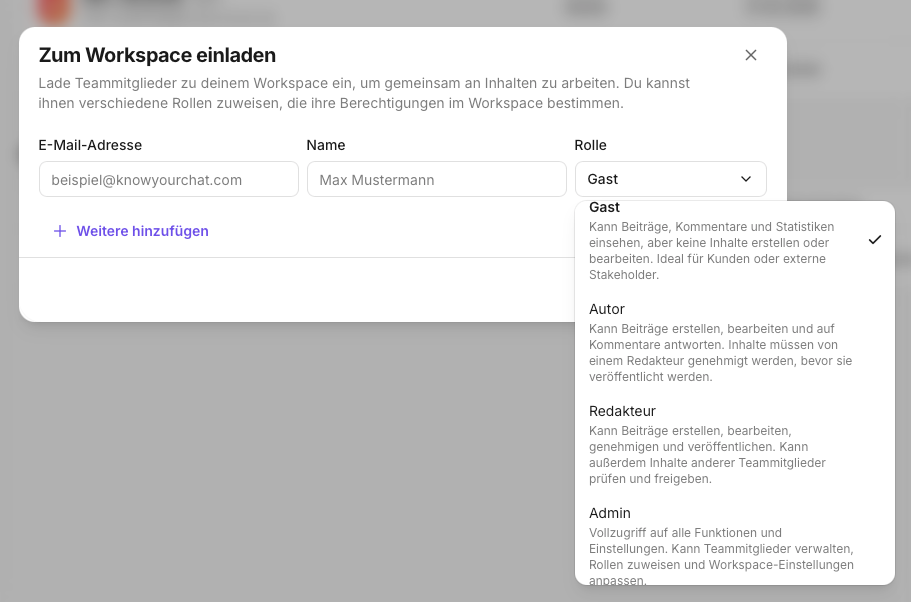
Step by step: inviting members
- Open Settings.
- Go to Workspace → Members.
- Click Invite.
- Enter the email address of the person you want to invite to the workspace.
- Assign a role.
- Send the invitation.
Step by step: checking roles and permissions
If someone can't see or edit something, it's often due to permissions.
- Open Workspace → Members.
- Find the person.
- Check their role and access rights.
- Adjust the role if necessary.
Step by step: removing access
If someone is no longer on the team, their access should be removed promptly.
- Open Workspace → Members.
- Select the person.
- Remove their access (or revoke the invitation if it's still pending).
Pitfalls
- A member doesn't have the necessary permissions for a task (e.g. connecting accounts). (Most common next step: How do I manage my social media accounts?)
- Several people feel responsible, but no one marks threads as done. (For clear handovers in everyday work, see: Assigning & collaboration)
- Roles are assigned once and then never reviewed again.
If something doesn't work
If invitations don't arrive or permissions are unclear, feel free to contact us with a screenshot.
Support: support@knowyourchat.de
✅ Quick start: First clarify roles, then define responsibilities (reviews, Inbox, accounts). After that, everyday work runs much more smoothly.
Further reading (related topics)
- Settings: overview – a map of which settings live where.
- Workspace settings: general – if you use several workspaces and want to avoid mix-ups.
- Managing labels (Workspace) – so workflows and formats are quickly understandable for the team.
- How do I manage my social media accounts? – if roles/permissions get in the way when connecting or managing accounts.
- Connecting channels: overview – setup logic (onboarding vs. settings) when you're connecting right now.
- Assigning & collaboration – getting day-to-day responsibilities clean.
- Introduction to the Inbox – if roles/responsibilities matter mainly for community management.
Need personal help? Email us at support@knowyourchat.de