Workspace Settings: General
🧩 Workspace settings: General
In the Settings area, you manage everything related to your account, your workspace, and your organization.
This page describes the section Workspace → General: here you can adjust the workspace avatar, name, and description.
Settings – what's where? (Overview)
In the left sidebar of the settings, you'll typically find three areas:
Account
- Profile: first and last name, email address, job title, biography, plus language/region incl. time zone, date and time format
- Security: change your password
- Notifications: manage email and push notifications
Workspace
- General: avatar, name, description
- Labels: add, edit, or delete labels
- Social Media Accounts: manage connected accounts (available vs. connected)
- Apps: manage integrations (currently e.g. Canva)
- AI Crew: customize the AI Crew (language, form of address, reply length, emojis, fine-tuning) + knowledge base (documents) + rules/do's & don'ts, topic priorities, and platform settings (e.g. hashtag strategy, post length, tone adjustment)
Organization
- Brand Hub: filled in automatically during onboarding (e.g. brand identity plus company and marketing goals) and can be adjusted later
- Strategy Hub: have a strategy created or create one yourself
- Members: manage organization members and their workspace access
- Billing: view your current subscription
If you first want to get an overview of which settings exist overall, start here: Settings: Overview.
What can I change under "Workspace → General"?
If you want to set up your workspace "properly" right now, this is the right starting point: Setting Up Your Workspace: Basic Setup & Structure.
- Workspace name: The name is shown in the navigation and in many places throughout KNOWYOURCHAT.
- Workspace avatar: The avatar is the visual identifier. Many teams use their logo or an icon here.
- Workspace description: Especially helpful in teams or with multiple workspaces to briefly document the purpose. This description also helps the AI Crew make more targeted suggestions.
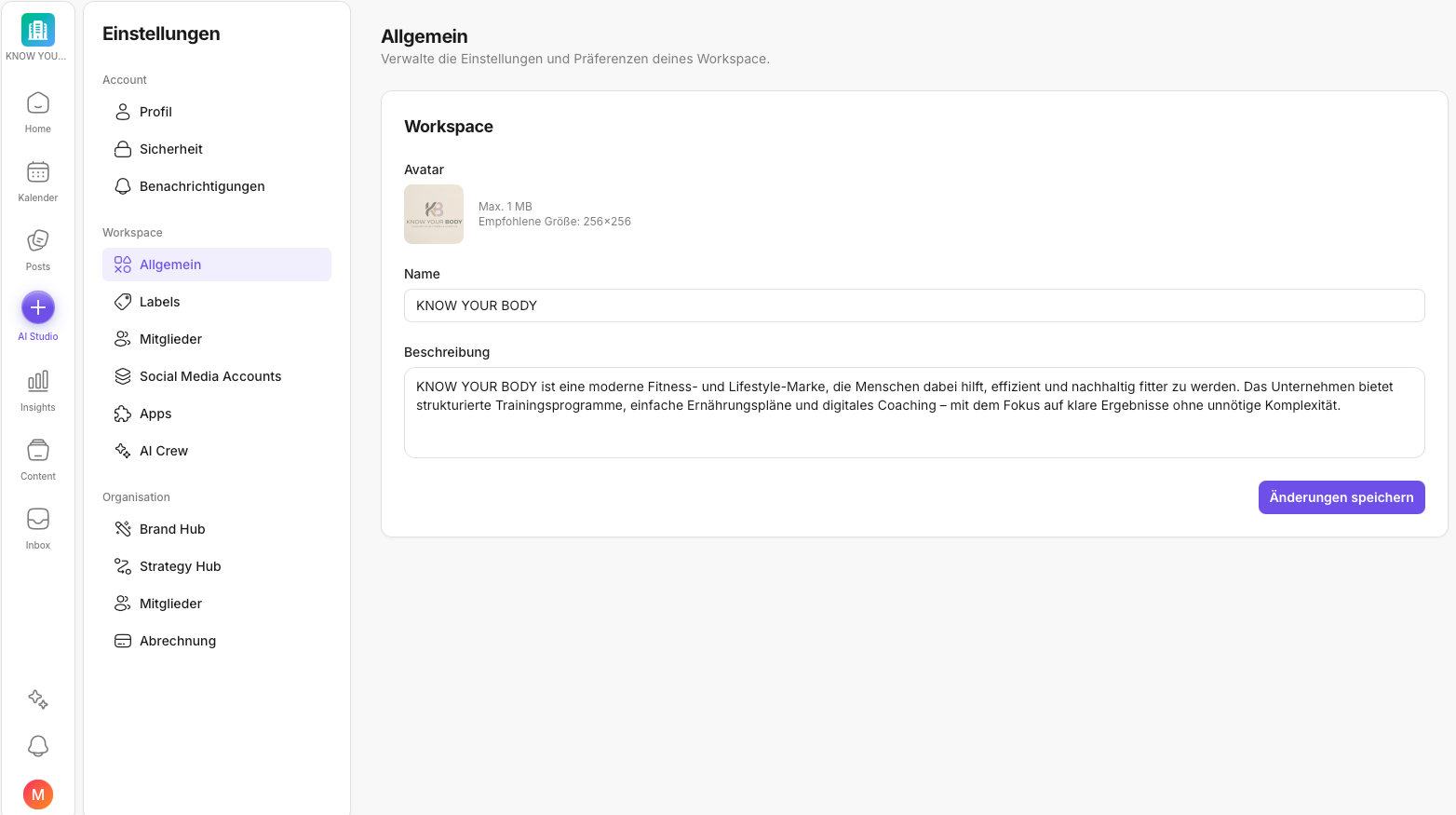
Step by step: change the name, avatar, or description
- Open Settings.
- Go to Workspace → General.
- Change the name and/or description, and click the avatar to update it.
- Save your changes.
Best practices
- Use a unique name if you manage multiple workspaces.
- Choose an avatar that is easy to recognize even at a small size.
- Use the description to briefly note what the workspace is for (e.g. brand/team/client).
If you have several people in the workspace, this is usually the next sensible step: How Do I Manage Members?.
If something isn't displayed
- Reload the page.
- Check that you're in the right workspace.
If it still doesn't work after that, feel free to contact us.
Support: support@knowyourchat.de
✅ Quick start: Give your workspace a unique name, set an avatar, and add a description. This reduces mix-ups – especially with multiple workspaces.
Further reading (related topics)
- Settings: Overview – context on where "Workspace → General" sits in the big picture.
- Setting Up Your Workspace: Basic Setup & Structure – if you're setting up the workspace from scratch.
- How Do I Manage Members? – as soon as you work as a team.
- Managing Labels (Workspace) – to structure posts and workflows cleanly.
- Apps – if you want to connect Canva, for example.
- Connecting Channels: Overview – if connecting social media channels is your next step.
- KNOWYOURCHAT Glossary – terms related to workspaces, roles, and settings.
Need personal help? Email us at support@knowyourchat.de