Manage labels (workspace)
Labels help you bring order to your content. You can tag posts, formats, and processes so your team finds what they're looking for faster and collaborates more cleanly.
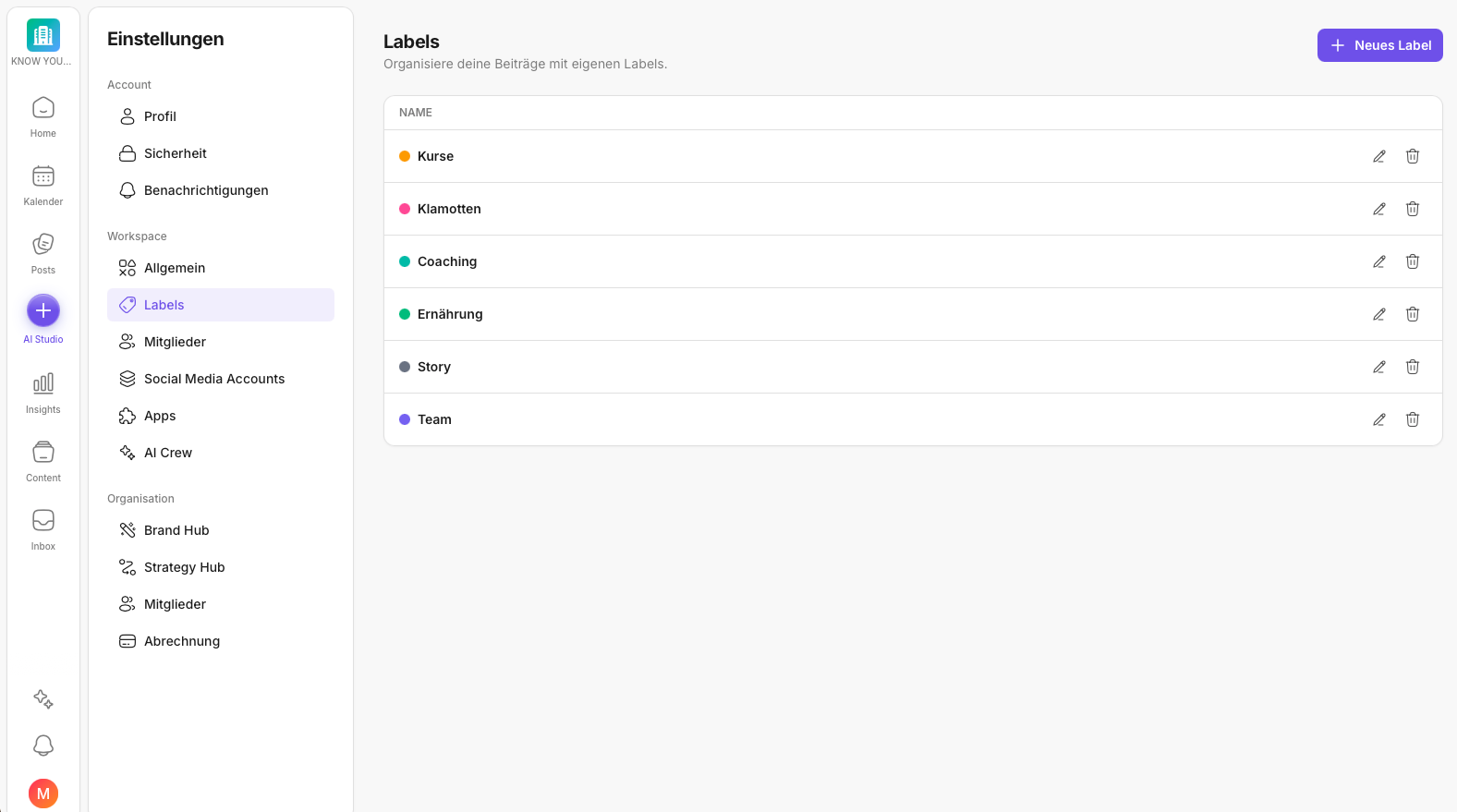
Think of labels as a shared vocabulary. When everyone on the team uses the same terms, filtering in Posts and day-to-day work become much easier.
You can find out how labels work in daily pipeline work (including naming conventions and typical workflows) here: Labels in Posts.
What are labels used for?
Labels make the most sense when you want to do more than "just post" and instead work in a deliberately structured way.
Typical use cases:
- Campaigns: For example: Launch, Event, Recruiting, Promotion, Offer.
- Formats: For example: Weekly Radar, Community Wins, Behind the Scenes, Product Update.
- Workflow notes: For example: Needs Review, Approval Required, Evergreen, High Priority.
How to keep labels manageable
If your label set grows too big, eventually nobody uses it anymore. That's why a simple set of rules pays off.
- Prefer a few clear labels.
- Avoid duplicate terms ("Event" and "Events").
- Agree on a spelling convention (e.g. capitalization, singular).
- Don't use labels as a substitute for statuses or clear responsibilities.
Recommended structure (if you're just getting started)
If you're just starting out, a small set is often enough:
If you're currently setting up your workspace in general (structure, rules, roles), this is the right context: Set up your workspace: Basic setup & structure.
- 3–5 labels for your most important formats
- 3–5 labels for your most important campaigns
- 1–3 labels as workflow notes
This gives you immediate value without getting bogged down.
Best practices for teams
- Agree on 10 minutes of "label cleanup" per month.
- When new labels are added, briefly tell the team what they're meant for.
- If you cross-post, labels can help keep series and campaigns together across platforms.
If labels are used inconsistently across the team, the issue is often not the labels themselves but a lack of clarity around responsibilities and roles. A good match: How do I manage members (workspace)?.
If something doesn't work
If you don't see any results when filtering, quickly check:
- Is the right label set?
- Is another filter active (status, account, platform)?
You'll find a step-by-step guide to filtering here: How do I filter by label?.
If you tend to "work through" tasks rather than search, the status filter also helps: How do I filter by status?.
✅ Quick start: Start with a few labels for formats and campaigns. Only once that's working, expand step by step.
Further reading (related topics)
- Labels in Posts – using labels day to day (pipeline, naming convention, workflow).
- How do I filter by label? – the exact click path in the filter bar.
- What can I filter by in Posts? – combining label, account, and status effectively.
- How do I filter by status? – if you work with labels + statuses (draft → review → approval).
- Approval & review in Posts – setting labels cleanly in the review process.
- Set up your workspace: Basic setup & structure – if you're just building your structure.
- Settings: Overview – where labels sit in the workspace setup.
- KNOWYOURCHAT glossary – terms and naming scheme around labels.
Need personal help? Email us at support@knowyourchat.de