How Do I Manage My Social Media Accounts?
🔗 How do I manage my social media accounts?
In this section, you connect and manage your social media channels. This is crucial because publishing, Inbox, and Insights only work reliably when the connections are clean.
If data is missing somewhere, a post doesn't go out, or the Inbox looks empty, "Social Media Accounts" is almost always the first place you should look.
If you'd like an overview of all the settings first (and what's typically checked first), see: Settings: Overview.
The reason is simple: KNOWYOURCHAT connects via the official platform access points and permissions. As soon as something changes there (for example an expired token or a change in permissions), it can directly affect publishing, the Inbox, and Insights. A quick check therefore often saves you a long search in the wrong place.
If you're just setting up channels (onboarding vs. Settings), this is the right overview: Linking channels: Overview.
What can you do here?
This section is mainly about two things: establishing connections and keeping them stable. It's not just "setup" — it's part of your routine if you want to work reliably.
Typical tasks are:
- adding and removing accounts
- checking the connection status
- reconnecting when tokens expire
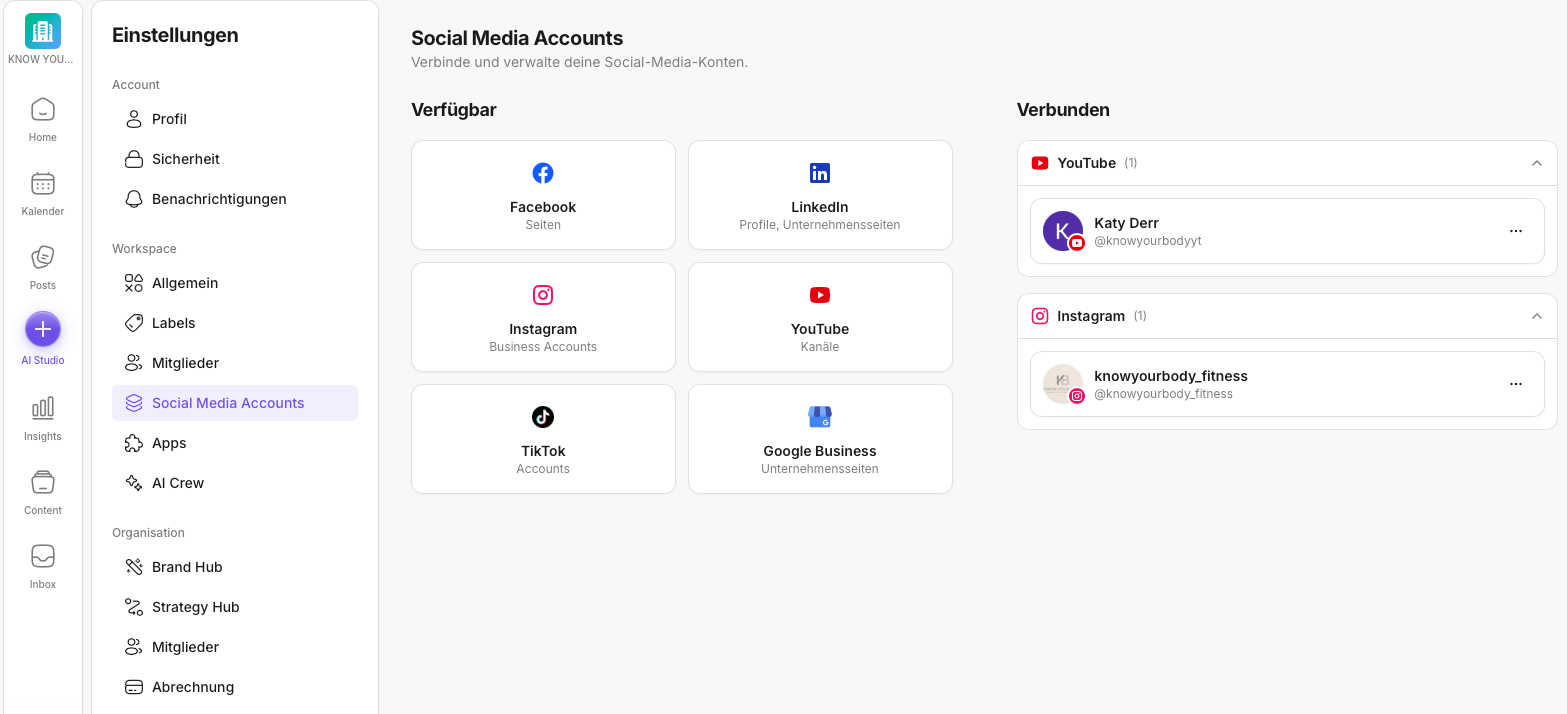
Step by step: Adding an account
- Go to Workspace → Social Media Accounts.
- Click one of the available social media platforms.
- Sign in and confirm the permissions.
- Select the account or channel you want and save.
You'll find detailed guides here:
- How do I connect an Instagram account to KNOWYOURCHAT?
- How do I connect a Facebook account to KNOWYOURCHAT?
- How do I connect a TikTok account to KNOWYOURCHAT?
- How do I connect a YouTube channel to KNOWYOURCHAT?
- How do I connect a Google Business account to KNOWYOURCHAT?
- How do I connect a LinkedIn account to KNOWYOURCHAT?
Step by step: Checking the connection status
- Open the Social Media Accounts section.
- Check whether all the accounts you need are shown as connected.
- Look out for notices like "Reconnect", "Token expired", or missing permissions.
Best practices
For this section to really help you, a fixed routine pays off. Then "managing accounts" becomes a quick habit instead of a stress topic once something is already on fire.
If you work as a team, it's worth clarifying roles and responsibilities cleanly so the wrong person doesn't connect accounts "by accident" or permissions are missing. Start here: How do I manage members?.
- Check your connections regularly, for example once a week.
- If you work as a team, decide who connects accounts.
- Always do a quick check after connecting:
- Home "Connected accounts"
- a test draft in Posts if needed
- a look into the Inbox if needed
If you have many accounts and need a quick overview in Posts, the account filter helps: How do I filter by account?.
If something doesn't work
If an account can't be connected or data is missing, it's best to go step by step. Often it's just the wrong login or a permission that wasn't fully confirmed.
If an account can't be connected or data is missing:
- Check whether you're in the right Workspace.
- Check whether you have the necessary permissions.
- Check whether you're signed in with the right platform login.
If it still doesn't work after that, feel free to reach out to us.
Support: support@knowyourchat.de
Further reading (related topics)
- Linking channels: Overview — setup logic (onboarding vs. Settings) and typical checks.
- Settings: Overview — which settings live where, if you want to start "in the right place".
- How do I manage members? — if permissions/roles are getting in the way when connecting.
- Supported platforms — which networks you can connect.
- Platform limitations — what's possible per platform and which limits you should know.
- Introduction to the Inbox — if you mainly want to handle community topics after connecting.
- Introduction to Insights — if you also want to analyze performance after connecting.
Need personal help? Email us at support@knowyourchat.de