Introduction to the KNOWYOURCHAT Calendar
🗓️ Introduction to the KNOWYOURCHAT Calendar
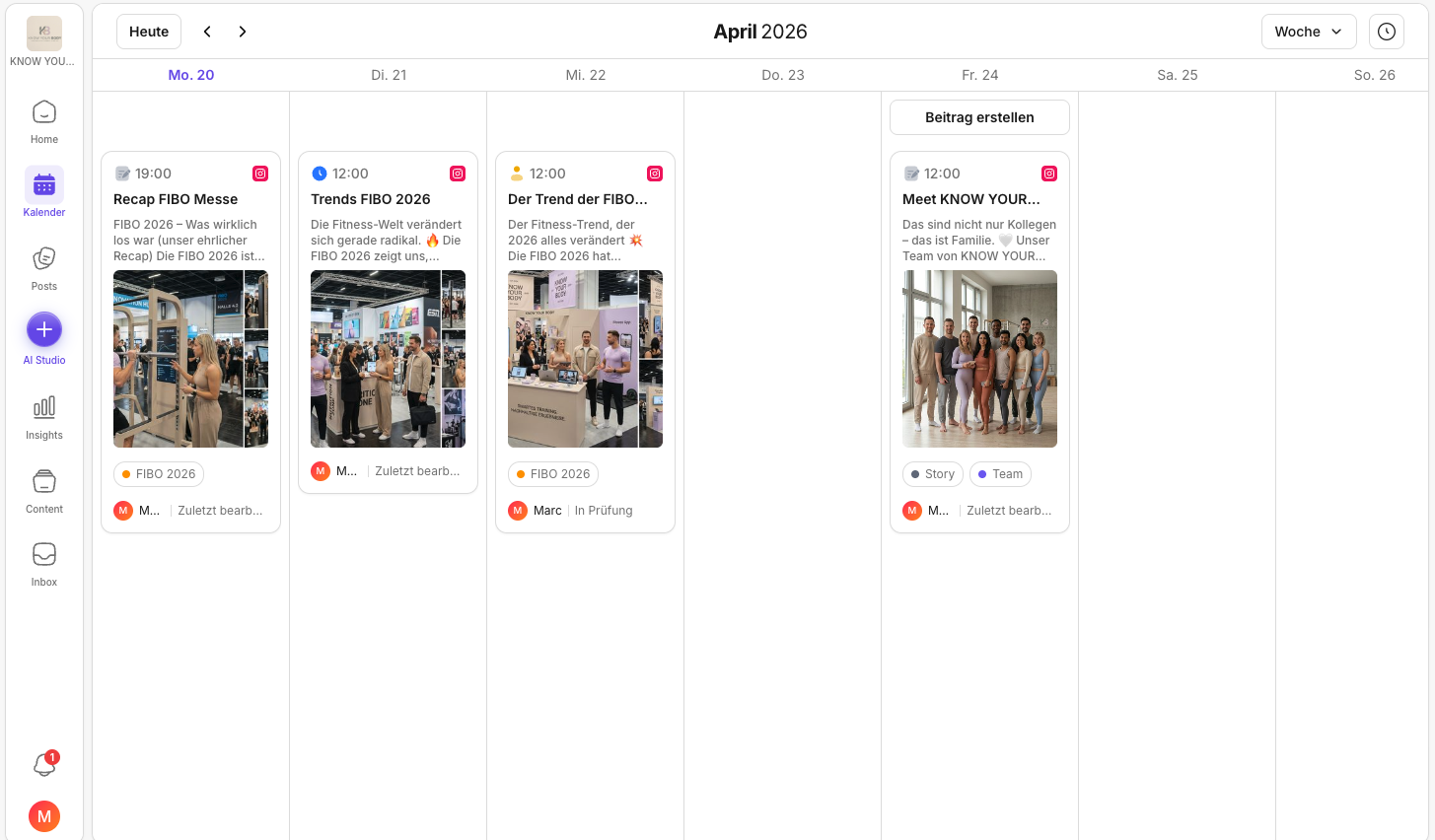
The Calendar in KNOWYOURCHAT is the fastest way to make your planning visible. In a single view you can see which content is scheduled for when, which channels it will appear on, and whether your plan is well distributed.
What do I use the Calendar for?
- Overview: What's going live this week or this month? If you'd rather start with a bird's-eye view, also have a look at Home.
- Planning: distribute content sensibly and close gaps. (For actually creating posts, continue with How do I create posts in the KNOWYOURCHAT Calendar?.)
- Team alignment: quickly show what's coming up in meetings.
- Control: check whether content, channels, and frequency fit together. If you're wondering where you actually "produce" content, the comparison Difference between Calendar and Posts helps.
Layout and areas (how to read the view)
Depending on the view (month/week), the layout can vary slightly. As a rule: the Calendar is your "planning screen". You use it less for writing content and mainly to quickly understand timing, distribution, and the current status of your posts. (If you're more in work mode, the Posts area is the relevant next step.)
Typical elements are:
- Calendar grid: your scheduled posts per day
- Channels/icons: show which platforms the post will be published on (if a channel is missing: see Adding social media channels)
- Status/badges: show the current state (e.g. Draft, Review, Scheduled). The terms are briefly explained in the KNOWYOURCHAT glossary.
- Quick navigation: by tapping "Today" or the arrow keys
- Unscheduled posts: at the top right next to the week/month view switch. They show you all posts that are still in the pipeline and don't have a fixed date yet.
Views (month, week)
- Month: ideal for capacity, campaigns, and gaps
- Week: ideal for fine-tuning and team alignment
Typical workflow (best practice)
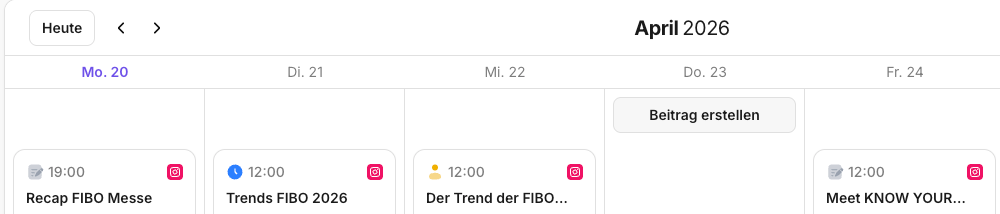

- Create a post (either in the month view in the Calendar via the plus or in the week view via Create post). You'll find a step-by-step guide in How do I create posts in the KNOWYOURCHAT Calendar?.
- Move it through the statuses (Draft → Review → Approval). If you need more structure here, Posts is the place for production and working through tasks.
- Check timing and distribution in the Calendar.
- Do a final check shortly before publishing. If something looks "off" (missing posts, wrong time, no buttons), start with Troubleshooting the KNOWYOURCHAT Calendar.
💡 Tip: Use the Calendar as the "single source of truth" for your team's plan: if it's in the Calendar, it's really scheduled.
Further reading
Need personal help? Email us at support@knowyourchat.de