Introduction to the Home area
Home is your overview for the day. It shows you output, planning, account status, and open approvals at a glance – so you immediately know where to start.
Home is less about "analysis" and more of a "control center". You use it to quickly check that everything is running smoothly, and then jump straight into the right area.
The Home area is your central entry point into KNOWYOURCHAT.
Here you get an overview of your current social media status, open tasks, and your planning in just a few seconds.
What is the Home area for?
In the Home area you can:
- check the current status of your social media activities
- see key metrics at a glance
- find open tasks and reviews
- jump straight into your next work steps
- get an overview of your weekly planning
The goal: You instantly know what's happening right now and what to do next.
AI Crew – Get started right away
At the very top of the Home area you'll find your AI Crew.

Here you can:
- type in your ideas directly
- or capture them via voice input
- generate initial suggestions immediately
How to use this area:
- Start with a new content idea without any detours
- Have suitable approaches created for you right away
- You'll automatically be taken to the AI Studio to keep working
The advantage:
You go straight from idea to execution – without having to switch areas first.
1. KPI tiles – Grasp your status instantly
At the very top of the Home area you'll find your most important metrics.
Here you'll see, for example:
- Follower growth
- Engagement rate
- Impressions
How to use this area:
- Check whether your numbers are trending positively
- Quickly spot whether action is needed
- Use the values as a basis for your next steps
2. Widgets – Your daily tasks
In the middle section you'll find various tiles (widgets) that take you straight into your work:
Typical widgets include:
- Recently published → an overview of your latest content
- Assigned to me → your current tasks
- Getting started → orientation and onboarding
How to use this area:
- Open the tasks assigned to you
- Jump straight into content that needs editing
- Keep track of the progress of your activities
3. Weekly plan – Plan and manage content
In the lower section you'll find your weekly plan.
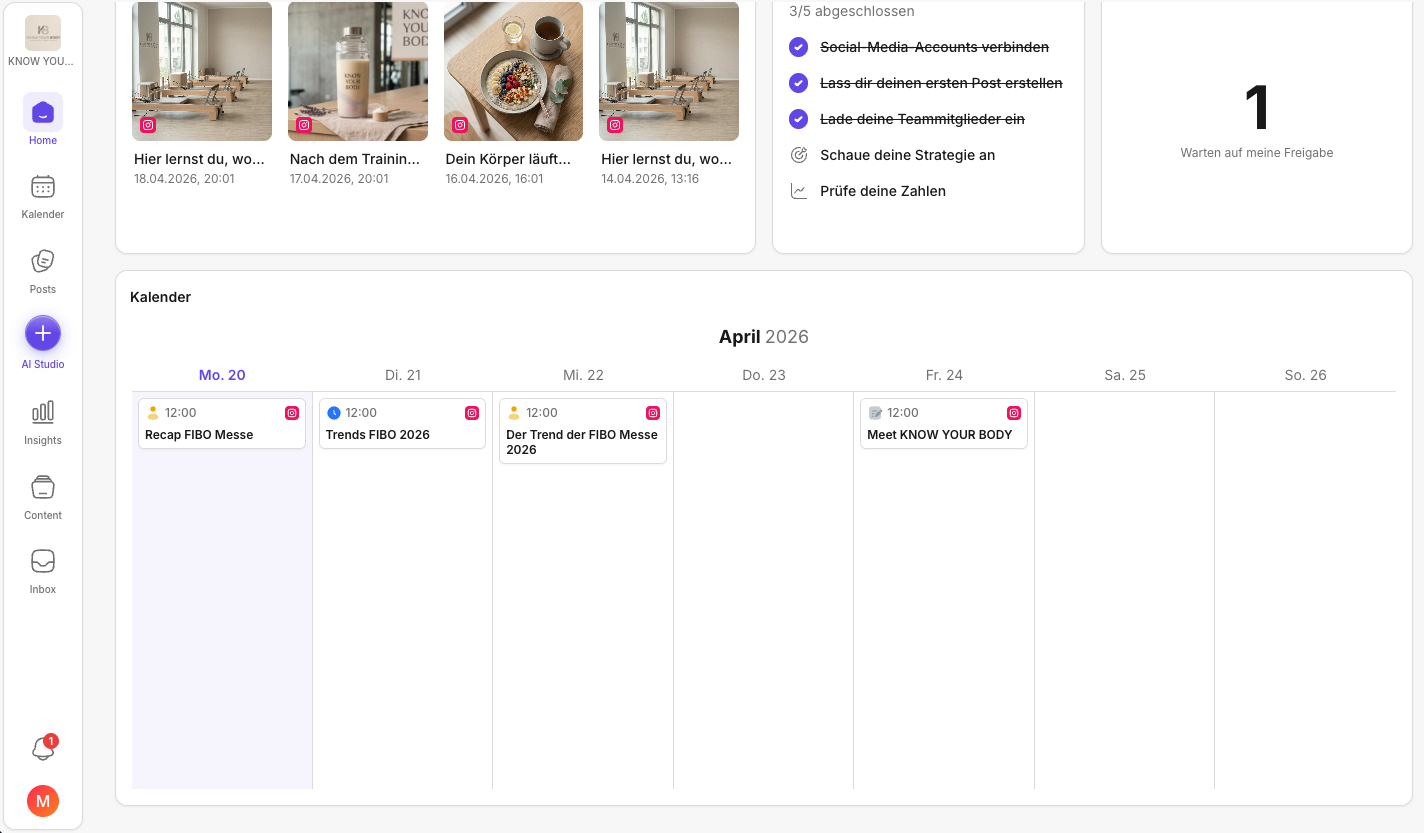
Here you can:
- see which content is scheduled
- spot open slots
- check the publishing status
How to use this area:
- Identify gaps in your planning
- check what's going live next
- schedule new content strategically
4. Customize the layout (optional)
You can customize the Home area to fit your role.
Here's how:
- Click Add widget in the top right
- Select the widgets you need
- Arrange them via drag & drop
- Resize the tiles by dragging the edges of the widgets.
The result:
Your Home area becomes your personal work dashboard.
In short
In the Home area:
- you see the most important metrics right away
- you find your current tasks
- you keep track of your weekly planning
- you can jump straight into your next steps
Home is your daily starting point for working efficiently in KNOWYOURCHAT. Where do you go after Home?
Home is your guide. It shows you where work is waiting, but the execution happens afterwards in the respective areas.
- Planning missing: Calendar
- Content missing: Posts
- Learnings missing: Insights
- Replies pending: Inbox
🔗 Further reading (continue right away)
If you want to take the next step directly from the dashboard, jump ahead here:
- Plan & close gaps: Calendar
- Create posts & get them into the pipeline: Posts
- Turn ideas into execution the smart way: AI Studio
- Handle comments, DMs & replies: Inbox
- Understand performance & derive learnings: Insights
- If something doesn't work (accounts, upload, display issues): Troubleshooting
- If accounts are missing or need to be reconnected: Add social media channels
- If team, roles, or workspace topics are in the way: Settings
✅ Quick start (your daily routine)
If you only have 60 seconds, this order is all you need:
- Check Connected accounts
- Check My reviews
- If reviews are open, approve them first or give clear feedback. This saves you coordination later and prevents scheduled posts from getting "stuck".
- Check Upcoming posts
- If there are gaps here, you can use your best performer as a template and quickly derive a new post from it.
✅ Rule of thumb: Home = overview. Execution happens afterwards in Calendar, Posts, Insights, or Inbox.
Need personal help? Email us at support@knowyourchat.de