Getting started with KNOWYOURCHAT
👋 Welcome to KNOWYOURCHAT!
In this guide, you'll set up KNOWYOURCHAT in just a few minutes so that your Calendar and your Inbox immediately fill with life.
Setup in 4 steps (ready to go in under 10 minutes)
- Connect channels
- Invite your team
- Plan and publish content
- Manage your community in one place
1) Connect channels: Instagram, Facebook, TikTok, YouTube & co.
An empty workspace is like a calendar without appointments. To plan posts and receive messages, first connect your social media channels to KNOWYOURCHAT.
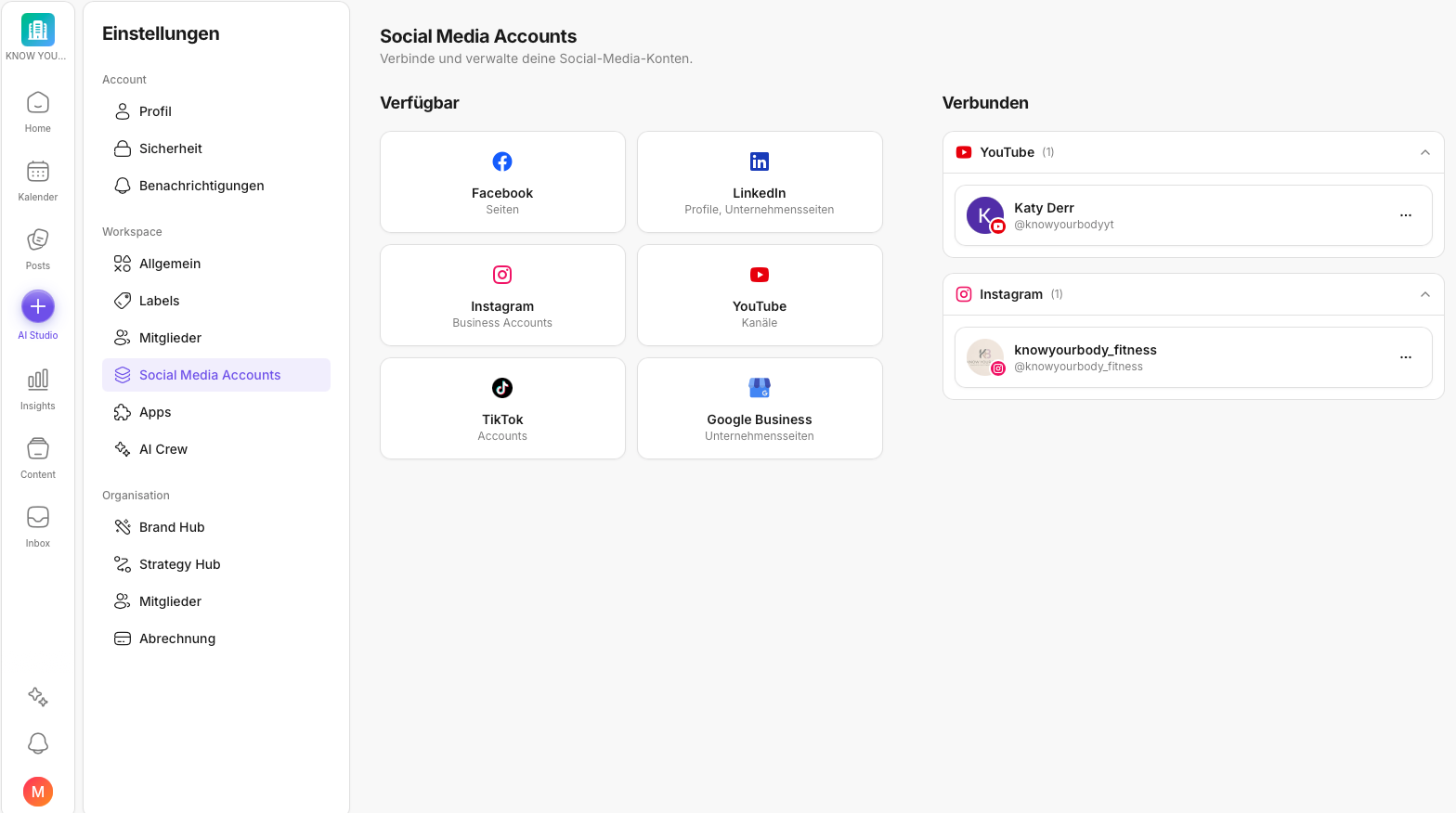
- Open KNOWYOURCHAT.
- Click Settings on the left.
- Under Workspace, select Social Media Accounts..
- Choose the network you want, for example Instagram, Facebook, or YouTube.
- Follow the authentication process and complete the connection.
Important: On the respective platform, you generally need admin rights or the appropriate page or account permissions for the connection to work.
If you want to read up on connecting a specific platform in detail, start with Add social media channels. For the relevant area in Settings, How do I manage my social media accounts? is also helpful.
2) Add members: collaboration and permissions
KNOWYOURCHAT is built for collaboration. Once your team is in the workspace, you can create content together, give feedback, and manage approvals cleanly.
- Go back to Settings.
- Under Organization or Workspace, open Members.
- Tap Invite at the top right.
- Use Organization → Members if you want to add people organization-wide.
- Use Workspace → Members if you want to add people to this workspace only.
- Then set the role.
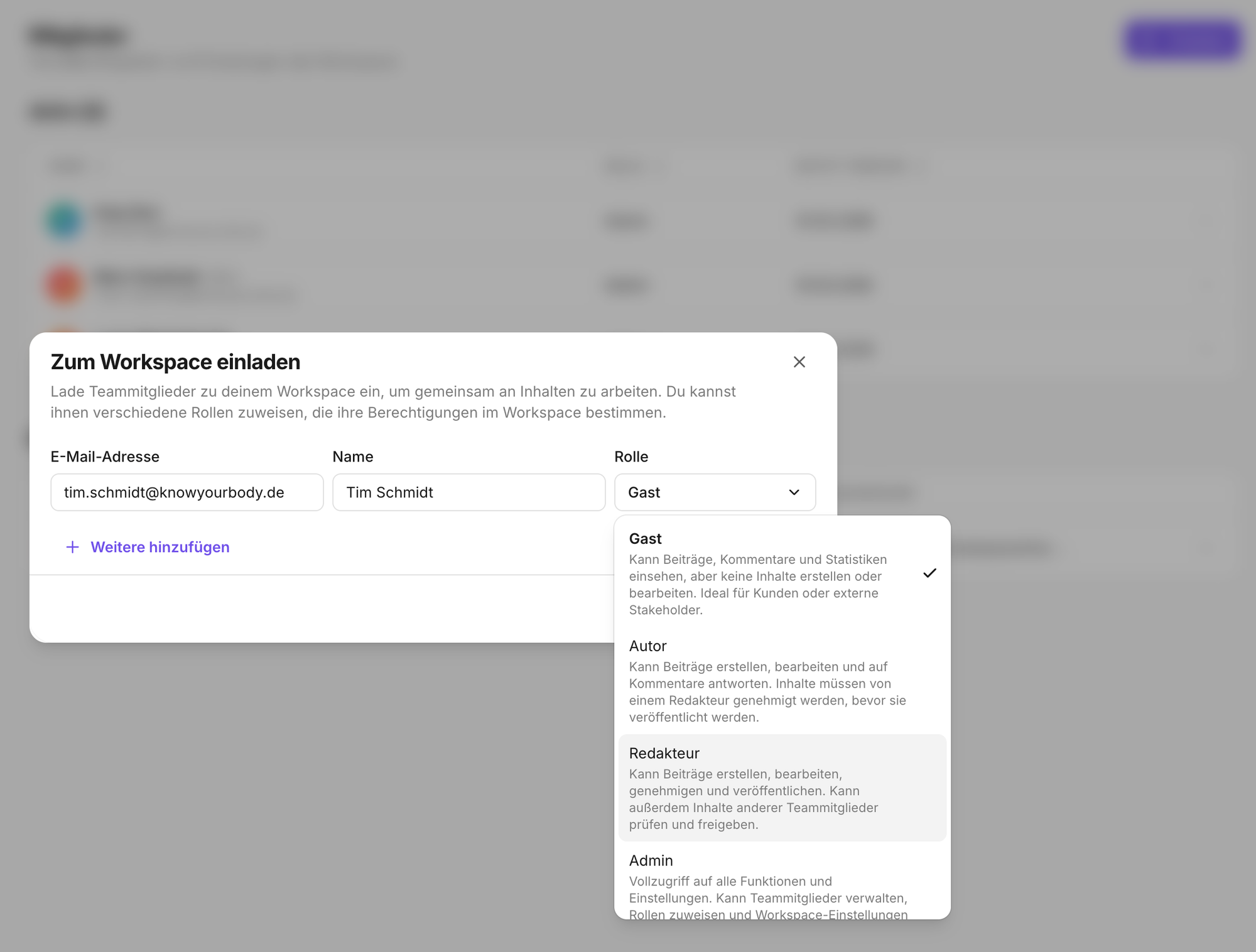
Tip: Assign permissions so that approvals are clear and nothing gets stuck "between responsibilities".
You'll find a detailed guide to invitations, roles, and access at How do I manage members?.
3) Plan and publish content
In KNOWYOURCHAT you plan content centrally, create posts, and keep an overview of all scheduled publications.
With KNOWYOURCHAT, you can plan and publish content in two different ways:
- Create posts via the Posts and Calendar areas
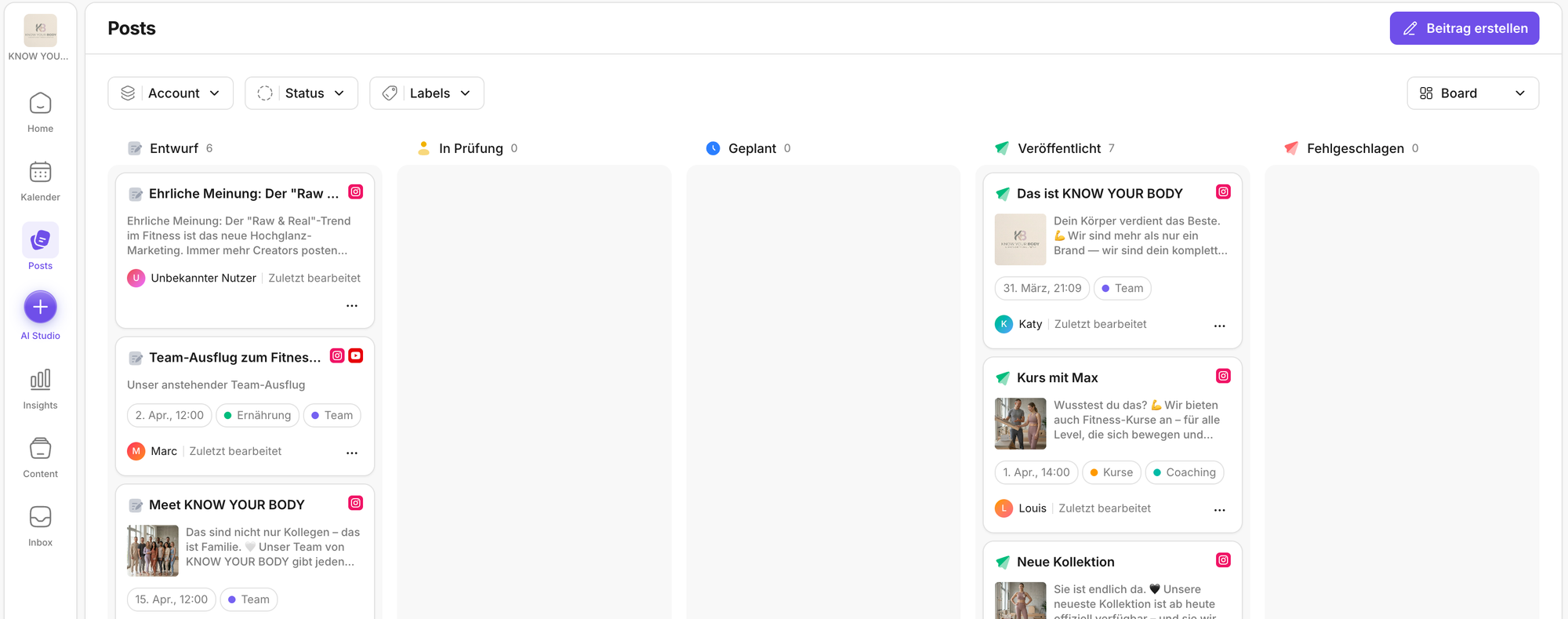
- Create posts: In the Posts area, click Create post at the top right, or in the Calendar use the plus in the month view or Create post in the week view to open the editor.
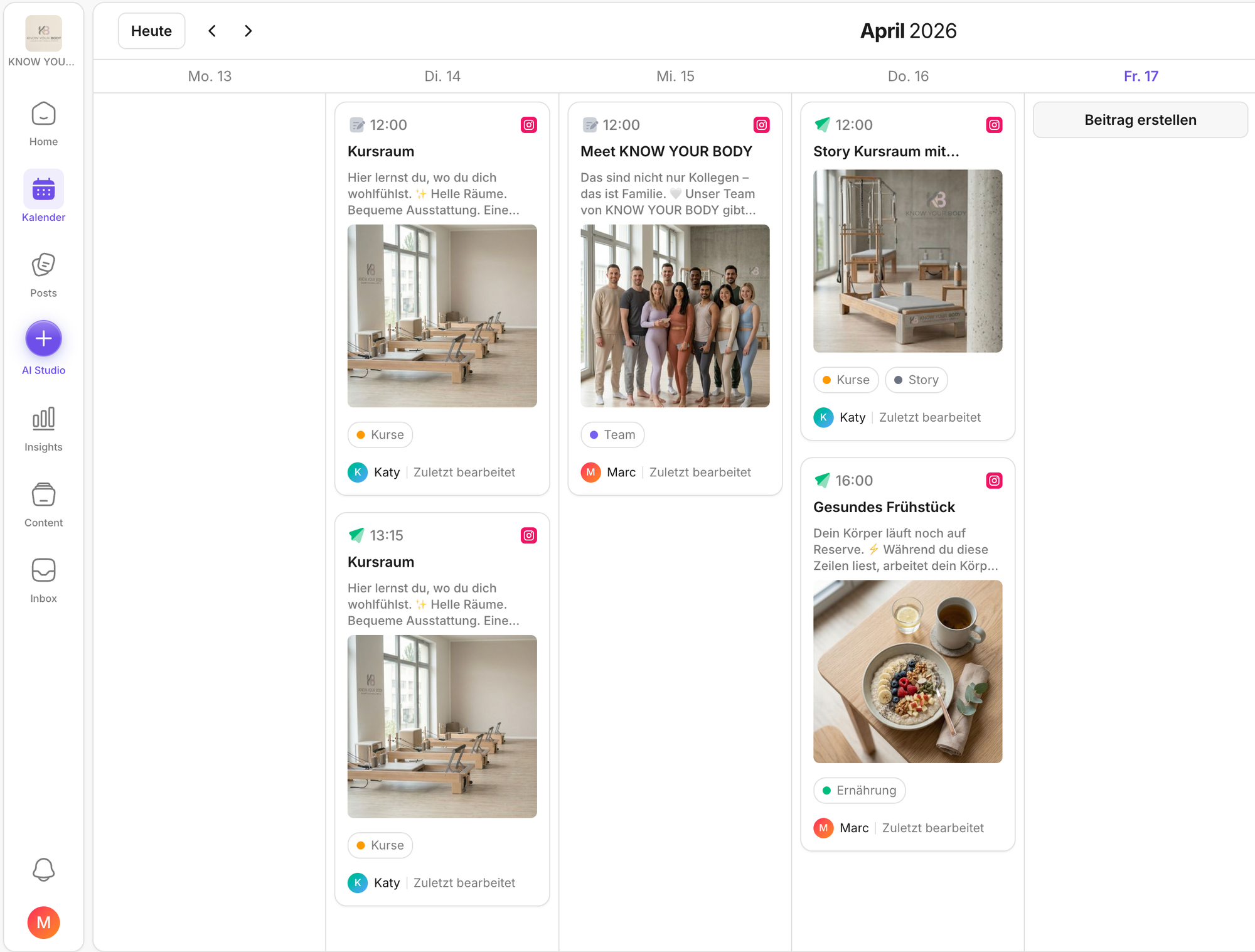
- Add media: Give your post a name, upload images or videos, and add text, links, and other content.
- AI assistance: Have our AI generate captions for you. If you'd like changes, you can highlight the relevant part of the caption and have it refined again.
- Preview and approval: On the right side, you'll find a preview of your posts. Use drafts and approval steps.
- Format checks (if available): Some networks have fixed requirements for image sizes, video lengths, or aspect ratios. KNOWYOURCHAT shows you hints so you avoid upload problems.
- Post to multiple platforms efficiently: If you want to publish the same content on several platforms, select the desired platforms when creating the post and use AI assistance for variants if needed.
- Create posts via the AI Studio
In the AI Studio, you don't work alone – you work together with your AI Crew. It helps you turn ideas into finished content in seconds.
The special part: your AI Crew doesn't work generically, but exactly the way you need it to – based on your goals, your target audience, and your communication.
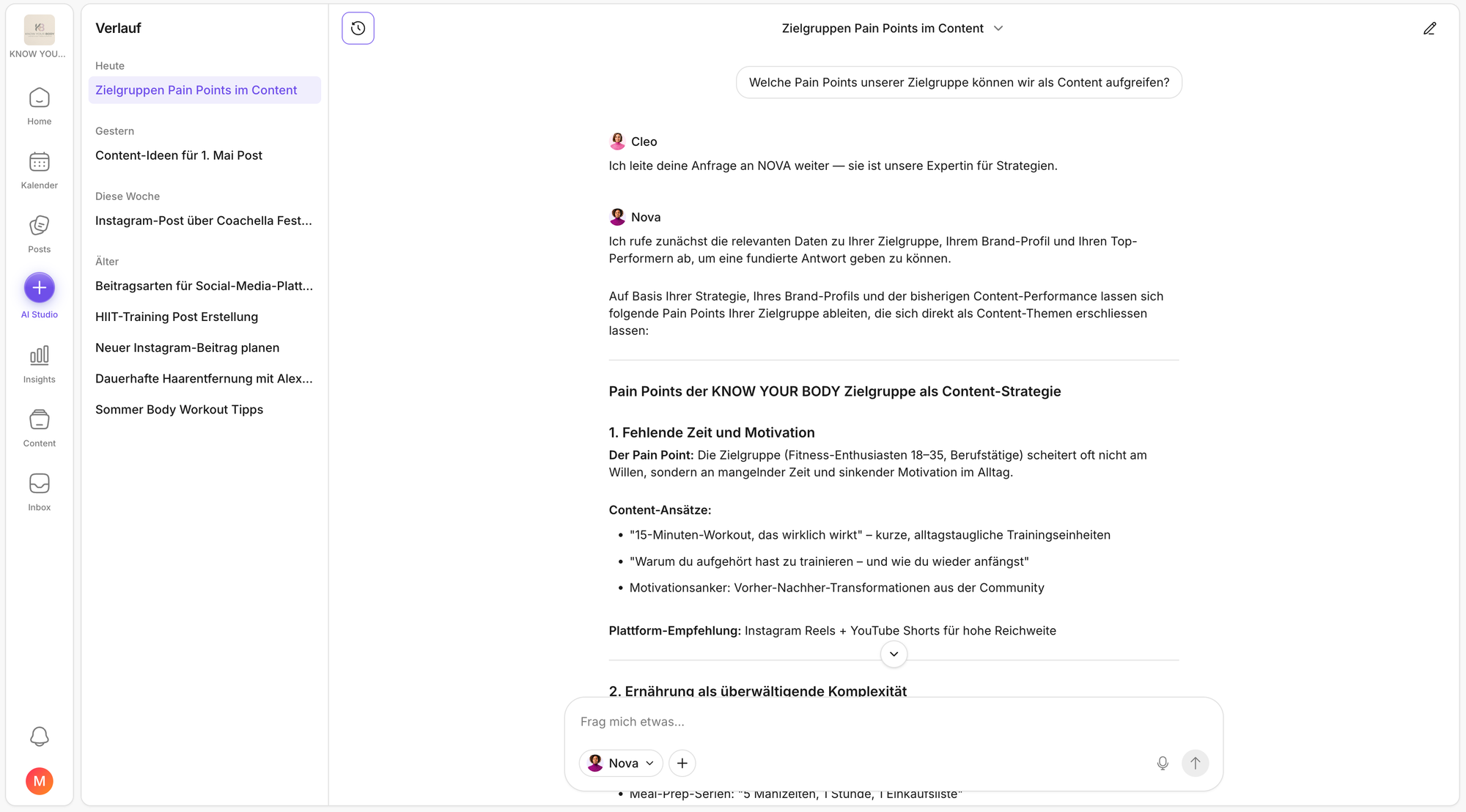
- Open the AI Studio: Open the AI Studio from the navigation bar on the left. This is where your collaboration with the AI Crew begins.
- Enter your ideas: Write to or talk with the AI Crew about your ideas for a new post or campaign. You don't have to phrase things perfectly.
- The AI Crew works for you in a targeted way: As soon as you send your request, your AI Crew takes over. The crew works based on the information you provided during onboarding or in Settings.
This includes, for example:
- your marketing goals
- your company's positioning
- your target audiences
- your tone and brand voice - Add media: Upload images, videos, or other content. This works flexibly from your PC, smartphone, or via the Content Hub, your integrated online library in KNOWYOURCHAT.
- Review and refine results: Your AI Crew delivers a result in seconds – but you can fine-tune anytime, for example like this:
- "Make the text shorter"
- "Phrase it more casually"
- "Tailor it more to our target audience"
The crew responds immediately and always stays within the framework you defined.
4) Community management: Inbox
Comments, mentions, and direct messages all come together in the Inbox so no request slips through.
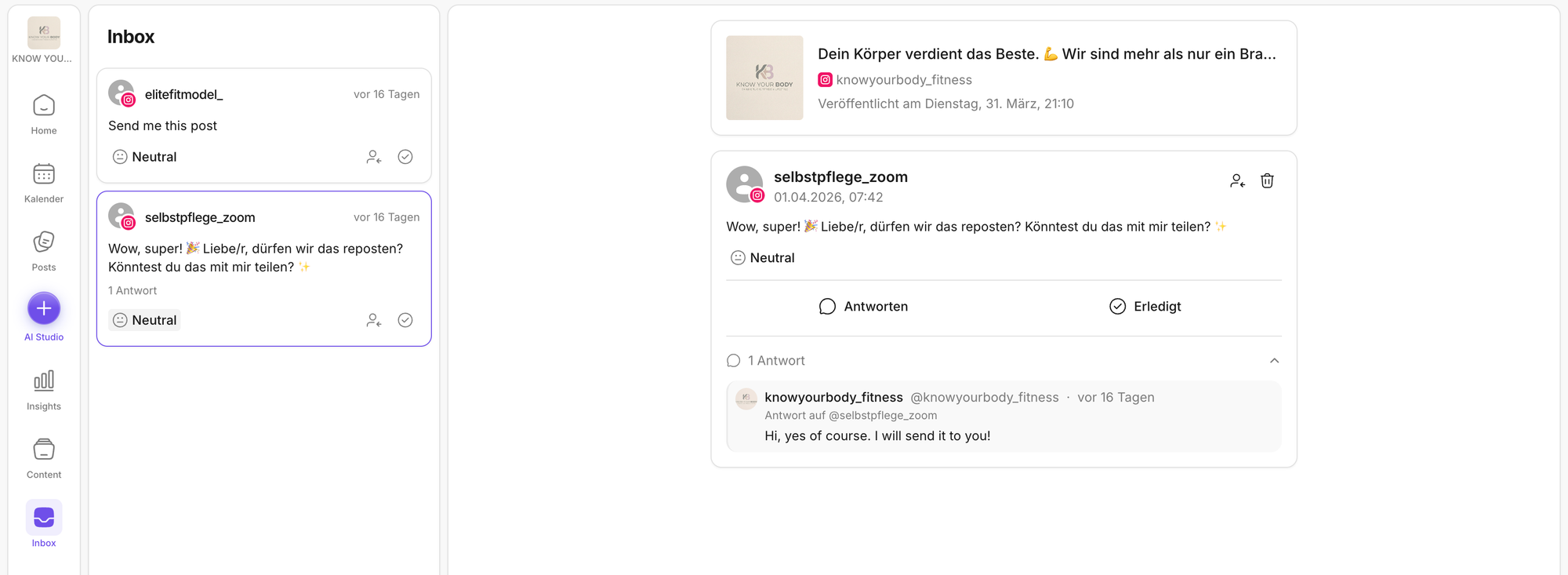
How to work efficiently:
- Central intake: Every message lands collected in the Smart Inbox.
- Replies and moderation: Reply directly from KNOWYOURCHAT. Depending on the network, features like liking, hiding, or deleting are available.
- Team collaboration: Assign messages, leave internal notes, and document decisions.
- Activity log: All important actions are traceable in the activity log.
To get started with the Inbox, Inbox is the best starting point. For day-to-day routines, Platform filter in the Inbox, Marking as done, and Sentiment in the Inbox (neutral, positive, negative) are also helpful.
Sensible next step:
First connect 1 to 2 channels (for example Instagram and Facebook). After that, you can create your first post right away in Posts and handle the first interactions in the Inbox.
Need personal help? Email us at support@knowyourchat.de